How to find who hosts a website
Start with a domain. Follow the public clues. Find the likely host—and know when the answer needs a little more evidence.
 A field note on infrastructure
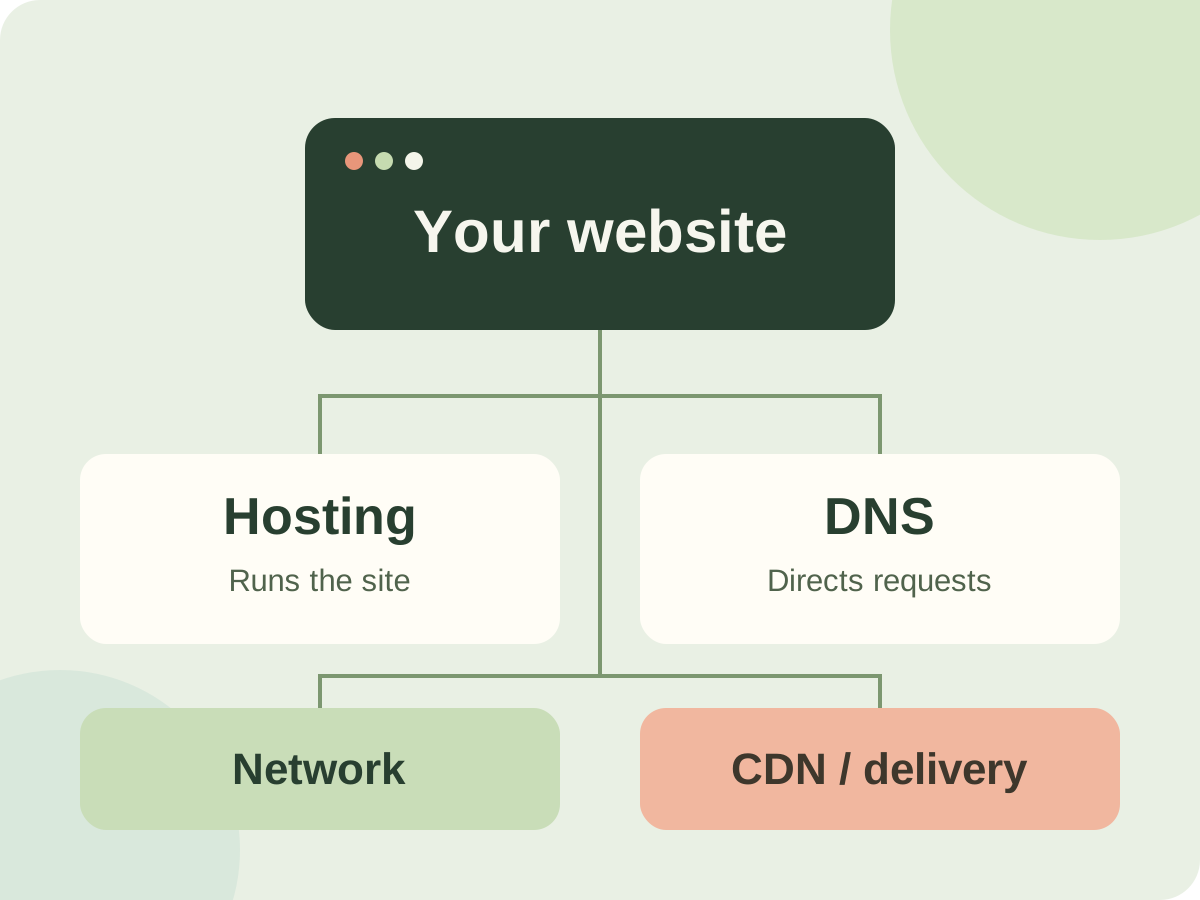
- Enter the exact website address in a hosting checker, then read hosting, DNS, CDN and network separately.
- Look for several clues that support the same hosting service. An IP owner or nameserver alone is not proof.
- For a site you manage, confirm the answer in its current deployment settings and hosting account.
SiteGround, for example, describes using Google Cloud infrastructure. The hosting brand and the underlying network can both be relevant without being the same company.
Source 4 ↗Start with a free hosting checker
The quickest way to find who hosts a website is to enter its domain in a hosting checker. Bare’s free tool accepts a public domain or page URL without signup. Choose “Check site”, then read the hosting result and its confidence. “Likely hosted by” means the public evidence supports a provider; “Not confirmed” means it does not support a clear answer.
A single provider-specific clue may be shown as a “Possible host” lead, with “One clue only — not confirmed.” It is a weak suggestion for that individual site, not a confirmed relationship, and it is excluded from provider counts and directory listings.
Use the address visitors actually open. The bare domain and its www version can point to different services or redirect to one another. Check the final address and redirect path before comparing results. If the result is cached, note its observation time: it describes that earlier check.
Open the result cards when you need the evidence. The response time includes the request’s network, CDN and application work. It is one server-side observation, not a worldwide benchmark or proof that a hosting company caused a delay. The optional public-listing choice is separate from running the check.
Read the provider names correctly
A domain registration lookup answers a different question from a hosting lookup. ICANN Lookup provides registration data and can help identify the registrar. That company may also sell hosting, but the registration alone does not establish where the website runs.
Keep these roles separate when reading a result. One company may fill several roles, or each may belong to a different company.
- Hosting: the service running or providing the website application. A reseller or agency may manage the customer’s account.
- DNS: the service publishing records that direct requests. Its nameservers are a useful clue about DNS management.
- Network / cloud: the infrastructure associated with the public IP. It may be an upstream supplier to the hosting brand.
- CDN / delivery: a service receiving requests in front of an origin. Its visible address may conceal the origin’s network.
Compare DNS records and response headers
Use the DNS lookup tool to inspect the hostname’s addresses, nameservers and CNAME aliases. A CNAME pointing to a documented website-platform target can be a useful service clue. Vercel, for example, documents CNAME configuration for subdomains. Match a target to current provider documentation rather than assuming every familiar-looking name proves hosting.
Nameservers alone are weaker evidence. A site can retain DNS at its registrar while its website runs elsewhere. An IP network lookup or reverse-DNS name adds context, but it can identify a cloud, shared service or reseller’s upstream network instead of the retail host.
Next, inspect the final page response with the HTTP header viewer. The Server header describes software handling a response; a value such as nginx is not a hosting-company name. Provider-specific headers can add a useful clue, but headers can be omitted or changed. Treat agreement between service-specific clues as support for a likely host, not proof of a customer contract.
Confirm the host of your own website
Check the domain attached to your active hosting control panel or deployment project. Then compare it with a current hosting invoice, welcome email or renewal record. Registration, email and website hosting can be separate purchases. An old invoice may describe a service the site has already left.
If an agency set up the site, ask which company provides the live hosting, who manages the account and whether the service is resold. Compare that answer with the current deployment. This can settle a billing relationship that public DNS cannot establish.
SiteGround is a useful example of why the layers matter: it describes running on Google Cloud infrastructure. Seeing a Google network does not, by itself, identify a SiteGround customer. Browse company profiles for context about services and sources, then confirm the relationship for your own site.
Why do hosting checkers disagree?
First check that the tools inspected the same hostname, final destination and time. DNS caches, migrations, redirects, IPv4 versus IPv6 and different request locations can expose different infrastructure. One tool may label the IP owner as the host; another may separate the retail service from its network.
Compare the evidence behind the names. If the clues conflict or only identify the CDN, keep the host unconfirmed. A missing result is not proof that a website has no hosting. If a change is recent, recheck after the relevant cache expires rather than repeatedly submitting the same request.
Bare’s provider directory lets you explore dated research and visitor-shared observations by hosting, cloud, network or CDN. These are limited samples, not a complete customer list or market-share measurement. Use them to understand the evidence, then check the site you are interested in.
Your next-step checklist
- Check the exact public hostname and final destination.
- Read the likely host separately from DNS, network and CDN.
- Compare the clues, confidence and observation date.
- Confirm your own site in its current deployment and hosting account.
- Leave hidden or conflicting hosting unconfirmed.
Sources & further reading
- 1Proxy status — Cloudflare DNS
How proxied and DNS-only records expose different addresses.
- 2Adding and configuring a domain — Vercel
Provider-documented DNS configuration, including subdomain CNAMEs.
- 3Server response header — MDN
The header describes server software, not a billing relationship.
- 4Data center infrastructure — SiteGround
SiteGround’s own description of its Google Cloud infrastructure.
- 5