How to find your DKIM selector
The clue is already in your email. Find the selector, pair it with the signing domain, and look up the right DNS record.
 A field note on email
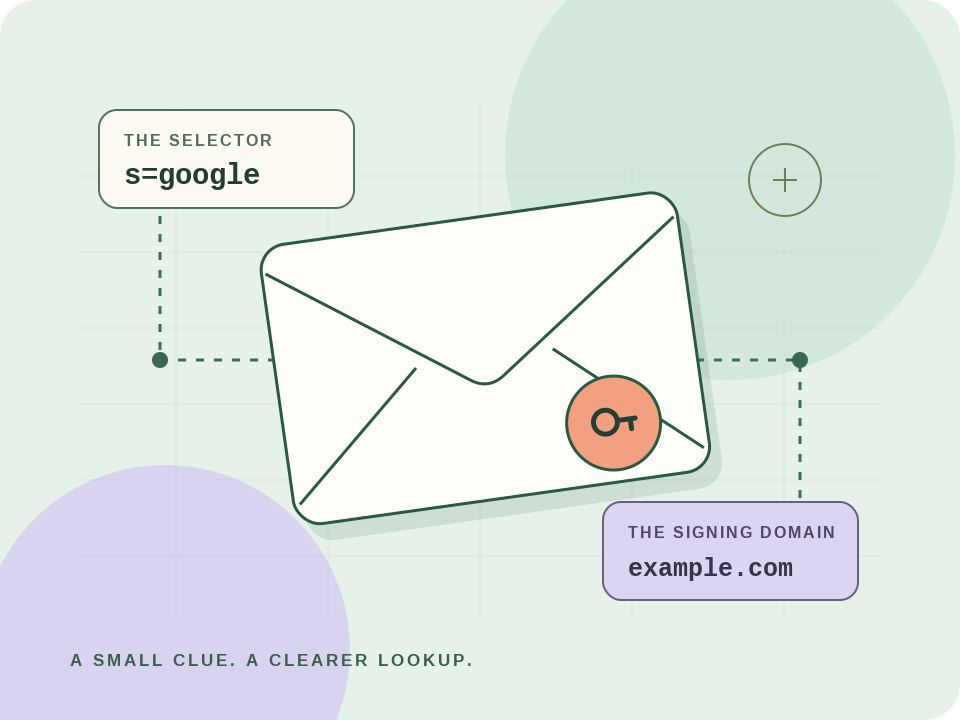
- In a received message’s DKIM-Signature header, s= is the selector and d= is the signing domain.
- Use values from the same signature. The signing domain can differ from the visible From address.
- Automatic lookup tries common names. If it finds nothing, check the exact selector from a real message.
The signing domain and selector work together. This identifies where a key is published; it does not prove a message’s signature passed.
Source 1 ↗What is a DKIM selector?
DomainKeys Identified Mail (DKIM) uses a signature to associate a message with a signing domain. Its selector tells a receiving mail server which public key to look up. You can usually find the selector in the message’s DKIM-Signature header or in your sending service’s email-authentication settings.
The s= tag contains the selector. The d= tag contains the signing domain. Join them as selector._domainkey.domain to identify the DNS name. In the example below, the selector is just google; ._domainkey and example.com are added to form the lookup name.
DKIM-Signature: … d=example.com; s=google; …

DNS name: google._domainkey.example.com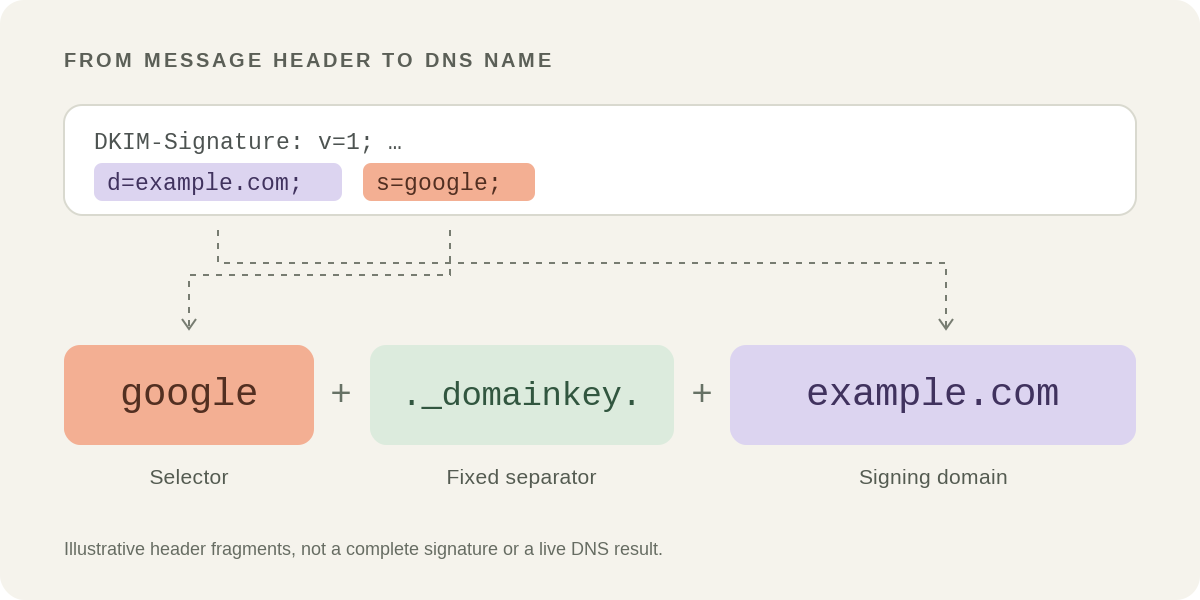
Find the selector in email headers
Use a message sent through the service you want to check, delivered to a mailbox you can inspect. In Gmail on the web, open the received message, select the three-dot More menu beside Reply, then choose Show original. Other mail clients may call this view message source or internet headers.
Search the full headers for DKIM-Signature:. Find s= and d= in that field. Headers can wrap across lines, so follow each value to its semicolon. If the message has several DKIM-Signature fields, keep the selector and domain from the same signature together.
This tells you what the message says was used to sign it. It does not establish that the signature verified. The receiving system’s authentication results are separate evidence about that particular message.
- Copy the value after s=, without the semicolon.
- Copy the value after d= from the same DKIM-Signature field.
- Keep full message headers private; the DNS tool needs only those two values.
Find it in Google Workspace or Microsoft 365
If you manage the sending service, look in its DKIM or email-authentication settings. Select the domain used to sign your mail. Do not assume the visible From address always supplies that domain: a service can sign with a provider domain or a configured subdomain.
Google Workspace commonly uses google as the selector, but it is not a universal value. Check the domain’s Gmail authentication settings in the Admin console and use the selector shown there, or inspect a real signed message. The selector may differ when keys are configured or rotated. Publishing a key and enabling signing are separate steps.
Microsoft 365 custom-domain DKIM uses selector1 and selector2, with one in use at a time to support rotation. Retrieve the exact CNAME targets from the Defender portal’s DKIM domain details or Exchange Online PowerShell. Microsoft advises against constructing targets from examples because generated values vary. A real message’s s= value tells you which selector was used for that message.
Other services can use custom or rotating names. Their settings, a signed message, or provider support are better sources than guessing from the website’s hosting provider.
Check your DKIM selector in DNS
Open the free Bare Audit email DNS checker and enter the signing domain from d=. Expand “Use a known selector” and enter the value from s=. Submit the form to check that selector’s declaration alongside SPF, DMARC, MX and MTA-STS records for the entered domain.
If you do not know the selector, leave the override empty. The tool tries google, selector1, selector2 and default, in that order, stopping at the first checked key declaration. This is a small, bounded discovery check, not an exhaustive inventory.
The lookup runs from your browser through Cloudflare’s public DNS resolver, which receives the requested name and your IP address. Bare Audit does not receive these lookups. Short-lived results stay in the tab’s memory; no signup or audit credits are needed.
What if the DKIM selector is not found?
A common-selector miss is not proof that a domain has no DKIM. Its sender may use another name. First, compare the exact d= and s= values from a recent message with the provider’s settings. Check spelling, publication, and any provider-specified CNAME target. An unavailable DNS response also differs from a successful query that returned no record.
If a declaration is found, it still does not prove the service is signing with that key, a message signature matches, DKIM aligns with the From domain, or an email reaches an inbox. For those questions, review a real message’s authentication results and your sending provider’s configuration.
Treat DNS as the first useful clue. Then use the email authentication fix guide to review SPF, DKIM and DMARC together before changing your setup.
Your next-step checklist
- Inspect a recent message sent through the service you want to check.
- Copy d= and s= from the same DKIM-Signature header.
- Use the signing domain and exact selector in the email DNS checker.
- Confirm provider-generated DNS targets in your sending service’s settings.
- Use message authentication results to investigate signing or alignment problems.
Sources & further reading
- 1RFC 6376 — DomainKeys Identified Mail (DKIM) Signatures
Sections 3.5 and 3.6 define the signing domain, selector and DNS key lookup.
- 2
- 3
- 4